May 7, 2013

Widgets and Popup – Have easy access to your messages

Posted in mysms news by mysms

You know, we are working hard to provide you with an amazingly easy and fast texting experience –not only on your smartphone, but for all your devices. One thing that a lot of you requested was the provision of different widgets and pop-ups for Android. Since the popup and the widgets are now available for both Android phone and tablet, we’d like to have a deeper look on it to show you the different functionalities.

Access your messages via widgets or the popup

Access your messages via widgets or the popup

Widgets – Have the most important messages always right at your hand

Android phone and tablet

The 4×2 widgets are available for Android tablet and phone. These widgets are the best, if you want to have your messages always right on your fingertips. On both you see the number of unread messages and you have easy access to compose a new message as well as to the message view in the app by clicking on the message or conversation. In addition they are available in light or dark theme and can both be used on the lock-screen (> Android 4.2). However, our widgets differ in the following way:

mysms (Messages)
Widget Messages
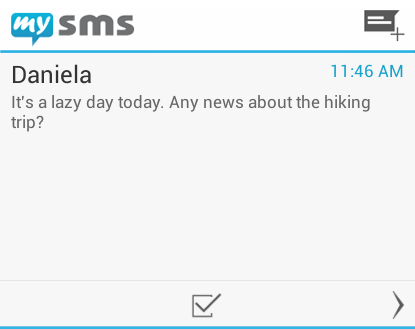
The settings of this widget let you choose, whether you want to display the messages of all or only a specific contact. You want to see the unread messages only? No problem, because there is also an option available for this. Moreover, you can mark messages as read by tapping the check box.
mysms (Conversations)
Widgets Conversations
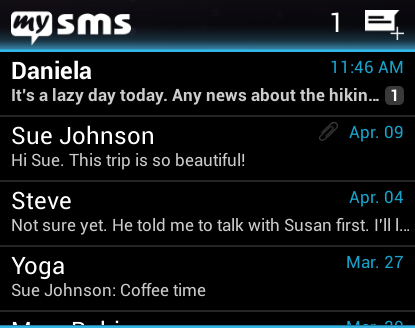
Ever wanted to have your conversations directly on the homescreen? If so, this widget might be perfect for you as it shows all your conversations (requires > Android 4.0)


Android phone

For Android phone there are two additional 1×1 widgets available. These widgets hardly need any space on your homescreen, but will make messaging much faster:

mysms (Icon)
Widget Icon
The “mysms (Icon)” is quite similar to the usual mysms app icon. However, the important detail of this widget is that it shows an unread message counter on the top right-hand side. This is the widget you might already know from our previous versions.
Update November 12, 2014: We recently added the unread message counter to the regular mysms app icon. That’s why this widget is no longer available seperately.
mysms (New text)
Widget New Text
Basically, the title here says all you need to know: Tap on this widget to open the new message view and start composing a new message without opening the app first.


Popup – Directly reply to your incoming messages

Android phone and tablet
mysms popup
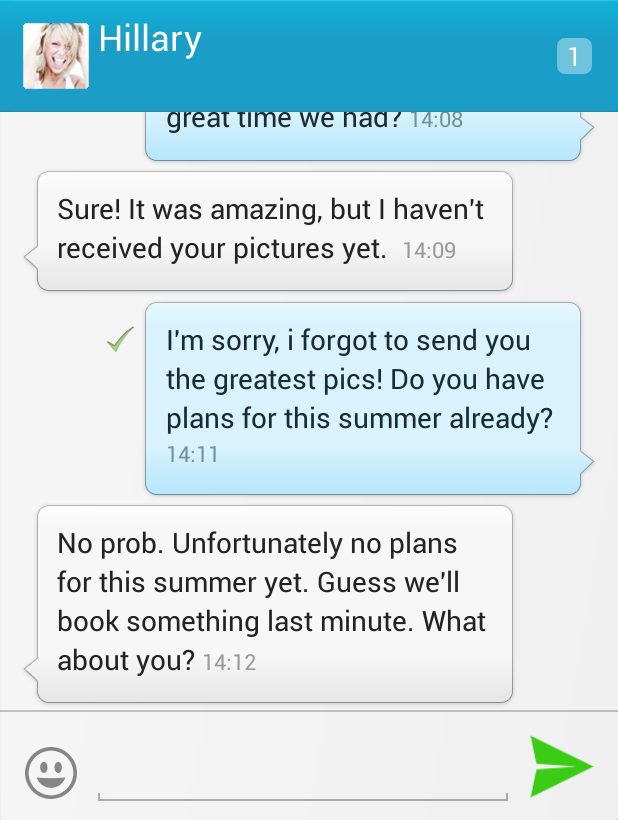
We’ve released a completely revised version of the pop-up for Android phone recently and now also offer the same experience for Android tablet. The new popup not only shows the last incoming message of a contact, but the whole conversation. So you can scroll through your messages without opening the app. If you want to answer the incoming message, click on the input field to open the message view. Moreover, as you are used to from the widgets, it displays an unread message counter and you can decide whether you want to use it in lock-screen. The color scheme of the popup depends on the theme you choose.


If you haven’t done so, try the different themes and tell us what you think about the new widgets and popup!
April 24, 2013

[quick tip] Send free invitations to your contacts

Posted in mysms quick tips by mysms

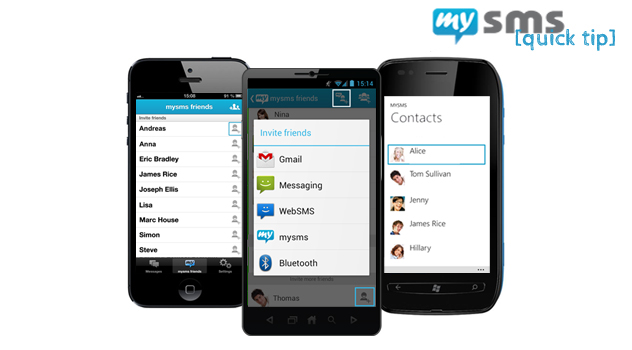
The more friends you have the more fun it is! As you know you can send free messages to other mysms users. Especially if you are an iPhone or Windows Phone user, it’s favorable for you to invite your friends to use mysms as well. Today, we’ll show you how to do so!

Invite your friends to mysms

Invite your friends to mysms

mysms allows you to send free invitations to all your contacts, no matter if you’re an Android phone, iPhone or Windows Phone user.


Android: In the conversation overview you’ll find the friends button on the right-hand side on top. Scroll to the section “Invite more friends” and click on a contact to send a free invitation. Moreover, next to the group chat button, we provide you with the possibility to send invitations via email or SMS/text. (Please note: If you send an invitation via SMS/text, your existing mobile agreement will be used).


iPhone: Select “mysms friends” in the conversation overview and choose a contact from the list. Additionally, you can tell your friends about mysms on Facebook or Twitter. Just tap on the “thumbs up” icon in the conversation overview.


Windows Phone: Open the conversation overview and wipe to the right. Here you can send free invitations to any of your contacts.


Even on the tablet and desktop apps you’ll find a friends list, where you can send invitations to your contacts from (Android tablet: coming soon).


So, tell your friends about mysms! After one of your contacts has set up an account, you’ll be informed about your new mysms friend.

April 4, 2013

New design for Android phones and web app with improved notifications and personalization

Posted in mysms news by mysms

We really love your feedback and feature suggestions. Therefore, we are proud to tell you that there is a major update available for our Android phone and web app. Not only the design is different, but also some great features have been implemented within the last few weeks.

Major update for our mysms Android phone and web app

Major update for our mysms Android phone and web app

Great improvements for mysms for Android phone

First of all we’d like to introduce you to the new mysms for Android phones:


1. Color your life

Standard design

mysms for Android phone got a new look. The subtle grey has gone and is now replaced by a fresh blue. It looks clean, stylish and simply great! Moreover, we’ve adapted the pop-up and widget – find more information below.


Themes

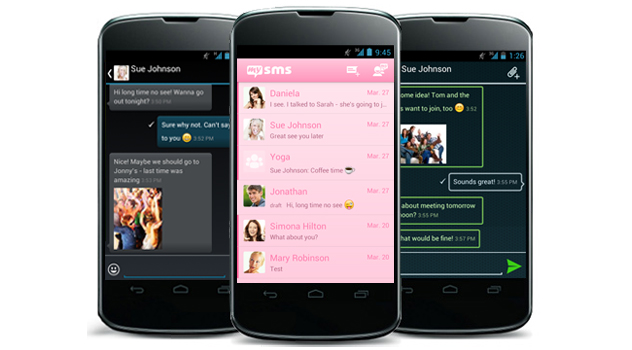
If you still want to get rid of the basic design, we’ve got really great news for you. We know that you have been waiting for this for a long time, but finally new themes are available for mysms. We now provide you with the following cool styles:

  • mysms – Dark Theme
    You might know this one, as it was already downloadable. We made some major improvements, so it’s even more fun using it now. Did you know you can use it for saving battery?
  • mysms – Tron Theme
    The tron theme gives mysms a breezy and fresh look. So, if you’d like to be in a cool mood, this theme seems perfect for you!
  • mysms – Pink Theme
    Hey feminine mysms users, this one’s for you: With this theme the app shines in pink and gives mysms a bright look. This theme will make you smile every time you use it.

Try the new mysms themes

Try the new mysms themes

Wallpapers

There’s an additional way to personalize your mysms Android app: You can add wallpapers from your gallery for the background of the conversation view. You’ll find this feature in the mysms settings. It’s available for every theme as well.


2. Show your emoti(c)ons

Tell your friends how you feel by using the integrated smileys and emoticons. Just press on the smiley button next to the input field and your software keyboard will change into a smiley keyboard.


3. New overview of incoming messages in the pop-up

You might have already used the pop-up for notification of incoming messages. Besides direct reply, it’s possible to switch between conversations. If you receive messages from more than one recipient, you can switch to the other conversations by wiping or clicking on the arrow next to pop-up. Moreover, it shows how many new messages you have received.

The pop-up won’t appear if mysms is open. So, it won’t disturb you anymore while composing or reading another message.


4. Use widgets to have fast access to your messages

mysms now comes with five different widgets in two sizes (1×1 and 4×2). Every widget has its own or an extended functionality. The small icon widgets come either with a simple unread messages counter (as you’re already used to) or with a “new message function” that simply opens the new message view to compose it directly, if you click on it.

Depending on the one you choose, the bigger 4×2 widgets have different functionalities (the scrollable and lock-screen widget require Android 4.x):

  • Display of unread messages
  • Compose a new message
  • Show conversations or single messages
  • Select to only display unread messages
  • Show messages of all contacts or a preferred one
  • Switch between new or incoming messages
  • Mark messages as read
  • Use the widget in lock-screen
  • Choose between the Light and Dark theme


The renewed mysms web app

1. Enjoy the adapted design

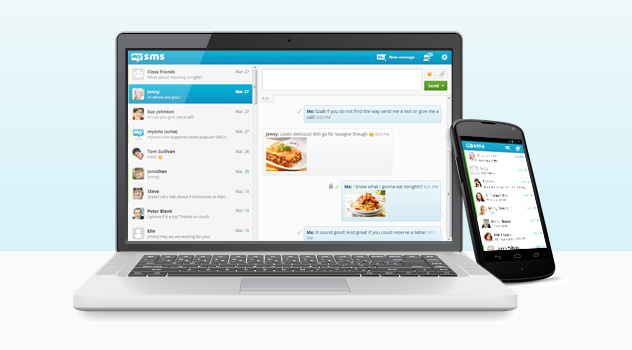
We’d like to provide you with the best experience regarding sending and receiving messages that is similar on every single device. That’s why we’re updating the design of all apps including the web app. We hope you like it!


2. Make use of extended settings

You don’t favor the current message view that shows the input field and your last messages on top? Have a look at the settings (click on the cogwheel in the top right-hand corner) and choose “Reverse message order”. Be surprised, because the view will show up the other way around.


This was a brief overview of our new implemented features and design. What do you think of it?


January 11, 2013

Would you ditch your laptop or smartphone for a tablet?

Posted in mobile news by sgeier

Tablets already enjoy a great popularity and the use of these touchable devices with a great variety of features is increasing steadily. But can a tablet completely replace your smartphone or laptop? Let’s have a look on what a tablet actually is and how people use it, first.

The rise of tablets

The rise of tablets

What exactly is a tablet?

Tablets are like portable computers with a larger screen than smartphones (usually 7” to 10”) and a touchable surface. There’s usually only a virtual keyboard, so it is handled with the touch of your fingertip or a specific pen. Since the first launch of the iPad, the range of tablets has increased through numerous new devices such as Nexus, Samsung or Asus. This expansion of brands has been driven by a higher consumer’s demand. As the majority of sold tablets are iPad, the mainly used operating system is iOS, followed by Android. If you’re likely to buy an Android tablet, you can have a look at the 15 best current Android tablets.


What kind of people own a tablet? What are they using it for?

Usually, women use technical devices less compared to men, but regarding tablets there’s no real difference in gender. However, the main audience is at the age between 25 and 44, which means that the ordinary user is older than the average person who owns a smartphone. An interesting point is that smartphone users are more likely to buy a tablet – according to comScore one out of four people already owns one.

Tablet usage: Time spent per category

Time spent per category

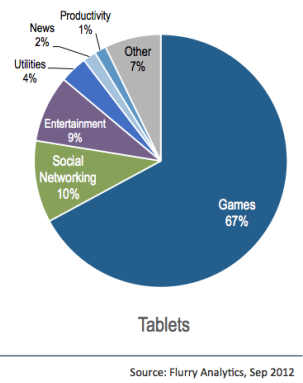
The range of features is huge. Most people use their tablets for playing games, but also accessing social networks, entertainment (e.g. surfing the net, watching videos, listening to music), managing e-mails or reading the news are popular interactions. On average, tablet owners use apps on tablets less frequently, but for longer periods and mostly at home in the evenings.


Is it a replacement for computers/laptops or smartphones?

This question is hard to answer as there’s no general solution for it. It really depends on your individual needs to find the right mix of digital devices that are able to solve your problems. Basically, it’s possible to do similar things on your tablet as on your smartphone. However, in most cases the user experience on tablets is much better, because of a better battery performance and the larger screen. For example, if you just want to quickly check your e-mails, a smartphone would be sufficient, but if you also want to compose an e-mail in a convenient way, a tablet would be the better choice. Furthermore, according to Frank Gillett (a Forrester Research analyst) tablets won’t replace PCs. However, the rise will oblige developers of PC operating systems to evolve. Windows 8 is a great example for that development. Specifically, if you need a mouse, a physical keyboard or a USB slot, you will still use a PC.


I personally use my tablet in my daily routine for almost everything I need to do on a digital device. I check and respond to my e-mails, surf the net, compose and edit documents, process some images and I also write my texts on it, of course ;). It’s much more convenient and easily portable compared to my laptop. However, if I’d like to make phone calls, I usually go back to my smartphone, expect for Skype calls. Moreover, for overcoming complex documents, image processing and so on, I still prefer my laptop. Consequently, my tablet is indispensible, but I guess it won’t replace any of my other devices – at least not in the near future.


What about you? Do you own a tablet? If so, what do you use it for? Would you be able to replace some other digital devices with your tablet? Let me know in the comments!


Sources: Flurry, comScore

November 28, 2012

mysms quick tips – learn more about mysms

Posted in mysms quick tips by mysms

Hey folks, we’d like you to know everything about mysms. That’s why we share mysms quick tips with you. These tips will contain basic features as well as hints regarding functions that might not be natural or visible at first sight.

know everything about mysms

know everything about mysms


The first mysms quick tip that we introduced last week was about sending attachments via the web app:

mysms quick tip #1

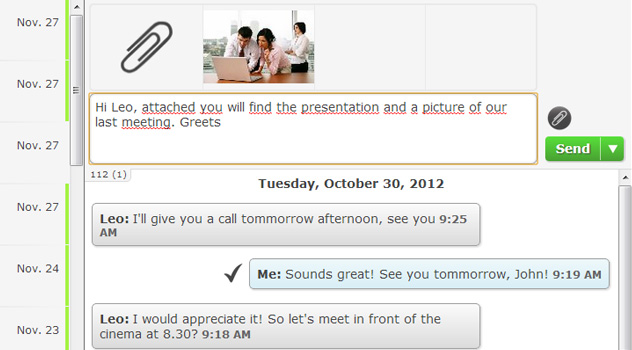
Did you know you can send any file type via the mysms web and desktop apps? Just click on the paperclip above the send button to attach your files.


Send any file types via the mysms web and desktop apps

Send any file types via the mysms web and desktop apps


Of course, we’ve got a new one for you today:

mysms quick tip #2

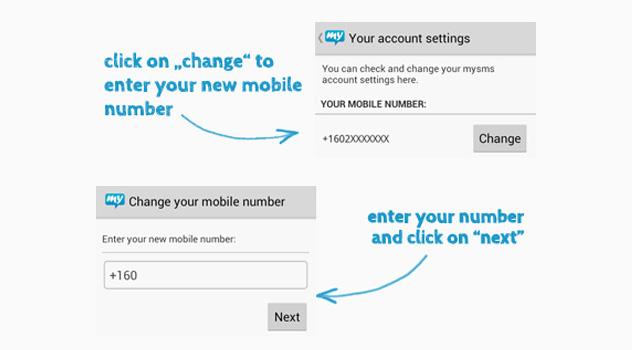
If you get a new mobile with a new number, you do not need to worry about your texts. Just download mysms on your new phone, login with your previous number and wait until the sync of your messages has completely finished. Afterwards, the last 1000 messages are sync’d from the mysms cloud to your new phone and all your other messages will still be visible on the web. Finally, update your number in the mysms settings. Simply click on “edit account information” and enter your new phone number.


Transfer your messages to your new phone

Transfer your messages to your new phone

With these tips you will get some advice or might discover some unknown features of our mysms app. Let us know if you want information about a special feature!